Prepare your campaign and world
Keep locations, characters, sessions, and campaign notes connected before game night.
DMGrid keeps maps, characters, combat, and notes together in an offline campaign manager for Windows.
Keep locations, characters, sessions, and campaign notes connected before game night.
Use Player View, manual fog, ruler, templates, drawings, map markers, images, and videos while you run the table.
Keep initiative, session notes, and starter 5E rules in the same local campaign.
Explore the table improvements in 0.1.9, then tour the board, world map, and campaign archive.
The first three videos were recorded in 0.1.9: Player View, manual fog, and tactical tools. The five following tours show an earlier interface.
Player View arrived in 0.1.8. In 0.1.9, players can draw on the map and switch to a map-only fullscreen view. Keep your campaign controls on your own screen while the group follows the encounter.
Open Player View in its own window and move it to the display used by your players. This is a local table workflow: it does not create an online multiplayer room.
Use Map only fullscreen to give the map the whole player screen. Exit with F11 or Escape to return to display options and the initiative panel.
Mark a route or a point of interest from Player View. Drawing, erasing, undo, and redo let the group revise its annotations as the plan changes. The video shows a route across the bridge, then undo and redo.
The manual fog introduced in 0.1.8 gains hidden, visible, and explored states in 0.1.9. Decide what to reveal and let the group remember terrain without revealing every creature on it.
Hidden areas conceal the map. Visible areas show the current scene. Explored areas retain a dimmed map while concealing tokens, so remembering a room does not reveal who is there now.
Use the manual fog brush to cover or reveal parts of the board and adjust its size for the area you are working on. Reveal a passage as the group advances and cover areas that should remain hidden.
The DM can retain the encounter context while Player View shows the filtered scene. Check Player View before showing the map to your group; the DM controls and player screen have different purposes.
Measure a crossing, place a spell area, and point out a destination on the same board. The tools added in 0.1.8 are joined in 0.1.9 by circular walking and running ranges and clearer pings and spell templates across DM and player screens.
Select the ruler and mark a start and end cell to read the distance in cells and feet. In the demo, the crossing measures ten cells, or fifty feet.
Circle, cone, and square templates make an area of effect visible on the board. The clip shows a circular template; 0.1.9 improves template visibility across the DM and player views.
Version 0.1.9 adds circular movement ranges for walking and running. Use map pings to draw the group’s attention to a position. These complement the ruler and templates shown in the video.
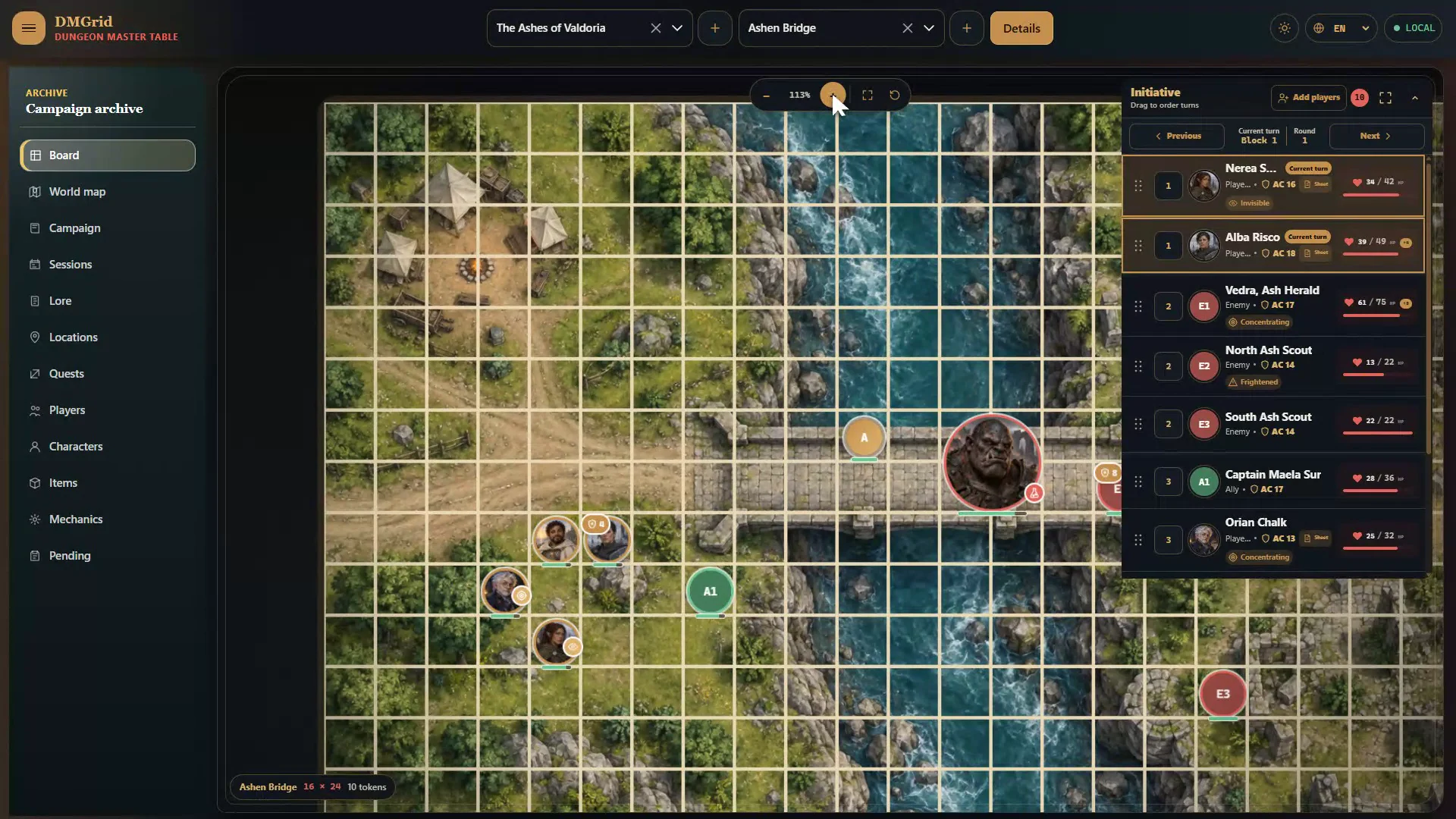
Set the map, move tokens, and resolve every turn without leaving the board.
Change the lighting of the whole table for the room or the readability you need.
Open Details to check the name, grid, and configuration of the map you are running.
Move between scenarios and campaigns without mixing context. The video returns to Ashen Bridge to continue the encounter.
Move closer to the action and drag tokens such as Slag Brute to their new position on the grid.
Select a token for contextual actions without filling the board with permanent controls.
Check and adjust a creature’s health from the board itself, right when it changes in combat.
Each creature sheet separates identity, combat statistics, and notes so you can find every detail quickly.
Maximise the panel, advance the round, and move Captain Maela Sur to the block acting at that moment.
Open Alba Risco’s sheet and browse its four areas: overview, skills, equipment, and spells with notes.
Turn the campaign map into a visual index of places, clues, and upcoming destinations.
Move closer to the bridge or the territory that matters without losing the campaign’s broader view.
Adjust each marker when the map or location needs greater precision.
Select a marker to open its information without leaving the map you are exploring.
Select the map, choose a type such as cave, and complete its details in the side panel.
Search Slag Hills or any other place, then select it from the suggestions to jump straight there.
Open the adventure’s central archive and gather the pieces that hold the story together.
Review the adventure’s core information from a dedicated space connected to the active campaign.
Maps, sessions, characters, and notes share a campaign to preserve their relationships and context.
Write what will happen, record what did happen, and find it again before the next session.
Add Session 5 or the next entry in your campaign and keep every session in order.
Organise scenes, clues, and reminders with headings and lists you can scan at the table.
Check the formatted result before using your notes at the table.
Five more spaces keep the cast, rules, items, and unfinished ideas in the same flow.
Keep information about the people in the group and their relationship to the campaign close at hand.
Organise heroes, allies, and adversaries so you can find them when they enter the story or combat.
Record important items, rewards, and equipment without separating them from the world where they appear.
Save table rules and custom mechanics to resolve questions without stopping the session.
Gather loose ends, preparation tasks, and ideas that still need a decision.
Buy the current Windows beta to prepare, run, and remember your campaigns offline. You will see the amount and currency before confirming payment.
One-time payment · perpetual license for 1 deviceBeta software may change or contain errors. Read the terms before you buy or download.
DMGrid is an offline 5E campaign manager for in-person Dungeon Masters: prepare, run, and remember the campaign in one connected place. Version 0.1.8 introduced table tools; 0.1.9 expands Player View, exploration, and movement. Here is how that focus differs from other established tools.
One connected 5E campaign, offline on Windows: campaign archive, world map, characters, board, Player View, manual fog, ruler, templates, drawings, map markers, images, and videos, initiative, sessions, and notes. Your campaigns stay on your computer and remain available offline, with no account or subscription.
MITHOS works offline, saves campaigns on your computer, and offers player screens and customisable sheets for different systems. DMGrid focuses on preparing and running 5E campaigns; its beta is available for Windows.
Foundry supports online play with add-ons and browser access for players. DMGrid brings campaign planning and combat together in an offline app for in-person sessions.
Arkenforge offers player screens, controls for map visibility, and animated images. DMGrid connects a 5E campaign archive and tactical board in one offline app.
Roll20 is an online tabletop with sheets, dice, content, and optional plans. DMGrid is an offline 5E desk for in-person Dungeon Masters.
World Anvil offers more tools for documenting worlds, timelines, and relationships. DMGrid focuses on preparing and running 5E sessions offline.
LegendKeeper combines linked notes, maps, and collaboration with offline editing. DMGrid keeps your 5E campaign and board together on your computer, without online collaboration.
D&D Beyond offers official characters, rules, and content, with Maps for encounters and initiative. DMGrid does not offer licensed official content.
Campaign Manager offers broad world, adventure, and puzzle planning. DMGrid keeps campaign, board, initiative, and notes in one place.
Kanka organises characters, places, maps, calendars, and relationships for group collaboration. DMGrid connects 5E preparation with the combat board offline.
Fantasy Grounds offers play across platforms with automated rules and licensed content. DMGrid connects 5E preparation with the board in an offline Windows app.
Editorial comparison reviewed on September 22, 2026. Trademarks belong to their respective owners. DMGrid is an independent product.
Release 0.1.9
Version 0.1.9 builds on the table tools introduced in 0.1.8 with player drawing, exploration states, and movement ranges.
Roadmap
Future work for DMGrid, in phases and without dates. Nothing in this section is shipped: it is the plan, not the current beta.
More ways to import and prepare maps for play.
Feedback-driven improvements, more 5E rules content where permitted, and demo and Steam plans.
macOS and Linux versions, and new ways to connect DMGrid with other tools.
Video calls, chat, internet multiplayer, AI generators, 3D, dynamic lights, and a marketplace.
Priorities may change as the beta evolves. Buy the beta available today.
Version 0.1.9 adds map-only Player View, player drawing with eraser, undo and redo, hidden, visible and explored fog states, and circular walking and running ranges. It also improves pings and templates, adds ten interface languages, and polishes dialogs and wording.
DMGrid is an offline 5E campaign manager for Dungeon Masters: one place for your campaign with a world map, characters, a tactical board, initiative, hit points, and session notes. It runs on Windows with no account.
Open Player View in its own window and move it to the group’s display. Map-only fullscreen dedicates that view to the scene; F11 or Escape returns to display options and the initiative panel. This is a local tabletop workflow, not an online multiplayer room.
Hidden areas conceal the map. Explored areas keep dimmed terrain while hiding tokens. Use the manual fog brush to cover or reveal parts of the board. The fog video shows covering and revealing with character vision disabled; it does not demonstrate the explored state.
You can move tokens, order turns, track hit points and conditions, review notes, and open locations linked from the world map.
Yes. DMGrid runs offline on Windows and stores campaigns locally. There is no account and no subscription: a one-time purchase unlocks the beta.
Accept the beta terms and buy through the secure payment page. After purchase the installer download starts and the license key is sent to the checkout email.
No. DMGrid is in active beta. Its features, design, and formats may change, and development may slow down, pause, or end.
World Anvil offers deeper tools for documenting and publishing lore. DMGrid keeps organisation simple and focuses on running 5E at the table.
The roadmap lists more ways to import and prepare maps, and longer-term plans for demo and Steam distribution. Plans may change.
Ask about the beta, licensing, or download. You can also send an incident report or an idea for a better table.
support@ilicilabs.com